
The Ultimate Guide to BPMN in Jira
In short: BPMN (Business Process Model and Notation) is the open standard for drawing business processes. It is maintained by the Object Management Group (OMG) and is also an ISO standard (ISO/IEC 19510). BPMN diagrams are readable by business users, analysts, and developers alike. In Jira, Flower lets you draw BPMN models and run them: every activity becomes a Jira work item, every lane an assignee, and every gateway a decision that moves the process forward.
Last updated: October 2026
The Business Process Model and Notation (BPMN) is a visual modeling language for business analysis and for specifying business processes. As an open standard for graphical flowcharts, it is popular and intuitive. All business stakeholders can understand it, including business users, business analysts, software developers, and data architects.
BPMN modeling and automation in Jira is supported by Flower – Business Process & Workflow Automation (BPMN) for Jira .
What Are the Benefits of BPMN?
- Improved communication: A diagram gives all stakeholders a shared understanding of how a process works.
- Better documentation: BPMN diagrams are a clear, detailed record of business processes, which is useful for documentation and compliance.
- Enhanced analysis: You can analyze and optimize processes and find bottlenecks, inefficiencies, and improvement potential.
- Automation: With Flower, a BPMN model runs in Jira.
Are There Limitations of BPMN in Jira?
- Complexity: Diagrams of large processes can become hard to understand. Split large processes into sub-processes.
- Focus on processes: BPMN is made for modeling business processes. Other activities, such as pure data manipulation, are better handled elsewhere.
- Predictable flow: BPMN suits processes with a predictable flow. Highly unpredictable work is closer to a project, and Jira spaces with boards are well suited to manage projects. Flower also lets you use a model as a guide for such work, see Agile Business Process Management.
BPMN vs. Jira Workflow
A Jira workflow is a set of statuses and transitions that a work item moves through. It describes how the status of one single work item changes serially, while BPMN describes multiple activities in serial or parallel order. When you design a Flower model, you can treat a Jira workflow as a sub-process. After the Jira sub-process is resolved, the next activity of the BPMN model becomes active. A good example of a Jira workflow as sub-process is the widely used four-eyes release step, which is easier to design as a Jira workflow.
As a rule of thumb:
- Use a Jira workflow for small workflows that focus on status transitions of one work item, space, or department.
- Use a Flower model for the bigger picture that spans several spaces and departments.
The following image shows a standard Jira workflow:
A Jira workflow has four building blocks: statuses, transitions, assignees, and resolutions.
- Statuses: A work item has one status at a time, such as In Progress or Complete. Consider whether a status represents an activity or a stage. Under Review represents a stage.
- Transitions: A transition connects two statuses in one or both directions. Between In Progress and Under Review, the transition could be Submit for Review. Conditions can restrict who may use a transition and when.
- The assignee: The person who is responsible for the work item. It often changes between statuses. In BPMN, lanes assign activities (Jira work items) to the responsible Jira user.
- Resolution: The final state, such as Fixed, Complete, or Won’t Fix. To reopen closed work items, make sure they were resolved before. Otherwise, the work item looks complete, with its name crossed out.
Find more details about the Jira workflow designer in the Atlassian documentation .
What Is the Difference Between the Jira Workflow Designer and a BPMN Modeler?
The Jira workflow designer lets you design and customize workflows within Jira. It offers a visual drag-and-drop interface for statuses and transitions. A BPMN modeler is a general-purpose tool to create visual models of business processes with the BPMN standard. It uses standardized symbols and notation to design and document processes. In short: the workflow designer is specific to Jira workflows, and a BPMN modeler is for end-to-end business processes.
Business-IT Alignment
BPMN is one of the most important components of successful business-IT alignment. These roles work with BPMN:
- Technical experts who are responsible for the implementation of processes
- Business analysts who create and improve processes
- Managers who monitor and control processes
BPMN lets you capture and document the business processes of an organization clearly and consistently. This involves relevant stakeholders such as process owners and business users, so the team can respond better to issues in the processes. BPMN has a rich notation that technical and non-technical people understand. Its benefits include:
- It is an industry standard, developed by the OMG, a not-for-profit industry group.
- It lets businesses define and understand their procedures through business process diagrams.
- It provides a standard notation that all business stakeholders can understand.
- It bridges the communication gap between process design and implementation.
- It is simple to learn and powerful enough to depict complex processes.
BPMN Notation in Detail
Knowing how the business operates is the first and most critical step of process improvement. A BPMN diagram shows a process as several steps (activities) that are performed one after another or at the same time, according to business rules. Take a look at the “Budget Request” process.
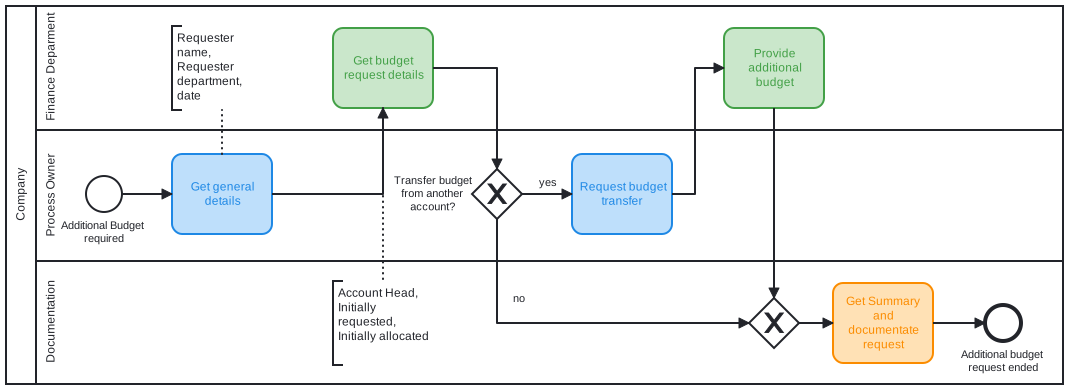
The BPMN standard classifies the graphic elements, so users recognize them easily. Let us look at the elements in detail.
BPMN Swimlanes
Swimlanes are rectangular boxes that represent participants in a business process. A swimlane contains the flow objects that this participant performs. The exception is a black box, which has an empty body.
Swimlanes can be horizontal or vertical. They mean the same and differ only in representation. In horizontal swimlanes, the process flows from left to right, and in vertical swimlanes from top to bottom. Examples are Customer, Account Department, Payment Gateway, and Development Team.
There are two kinds of swimlanes: pools and lanes.
Pools
A pool represents a participant in a business process, either a specific entity such as a department or a role such as a doctor, student, or vendor. Inside a pool are the flow elements, which represent the work the pool performs.
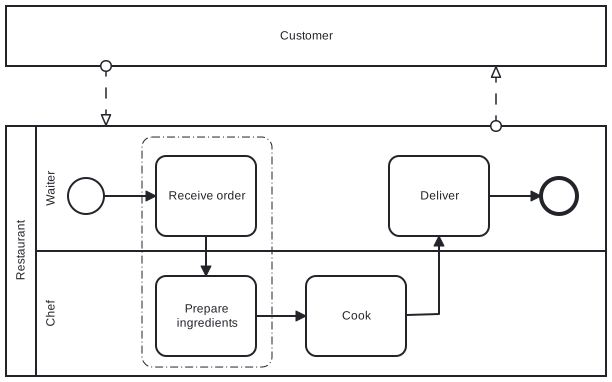
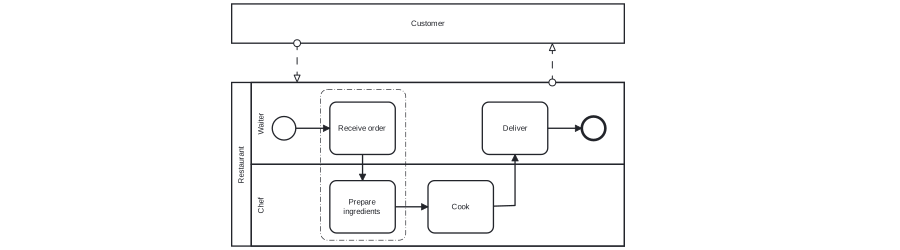
One kind of pool has no content: the black box pool. It models entities that are external to the process. Its internal flow does not affect the process being modeled, so it can be skipped. In the following example, the customer is a black box. The process focuses on how the chef prepares a meal, so what the customer does is not of interest. If you model how a customer places an order, you model the customer’s flow, and the chef becomes the black box.
Lanes
Lanes are sub-partitions of pools. A pool Department, for example, can have the lanes Department Head and General Clerk. Like pools, lanes represent specific entities or roles. In Flower, a lane also represents the Jira assignee. All activities of a lane are assigned to the same Jira user. See Automatic Jira Assignment with BPMN Swimlanes.
Lanes can contain other lanes to form a nested structure. BPMN is mainly for modeling business processes, so do not nest lanes just to show the structure of your organization. Use an organization chart for that.
Activities
Activities are work performed within a business process. They are shown as rounded rectangles with a name that describes the work. There are two types: task and sub-process. Use a task for atomic work that cannot be broken down further or for which this makes no sense.
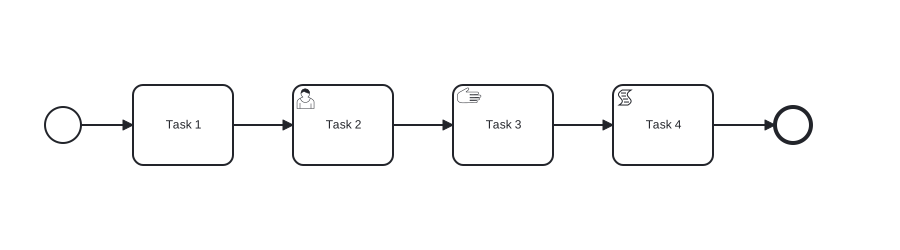
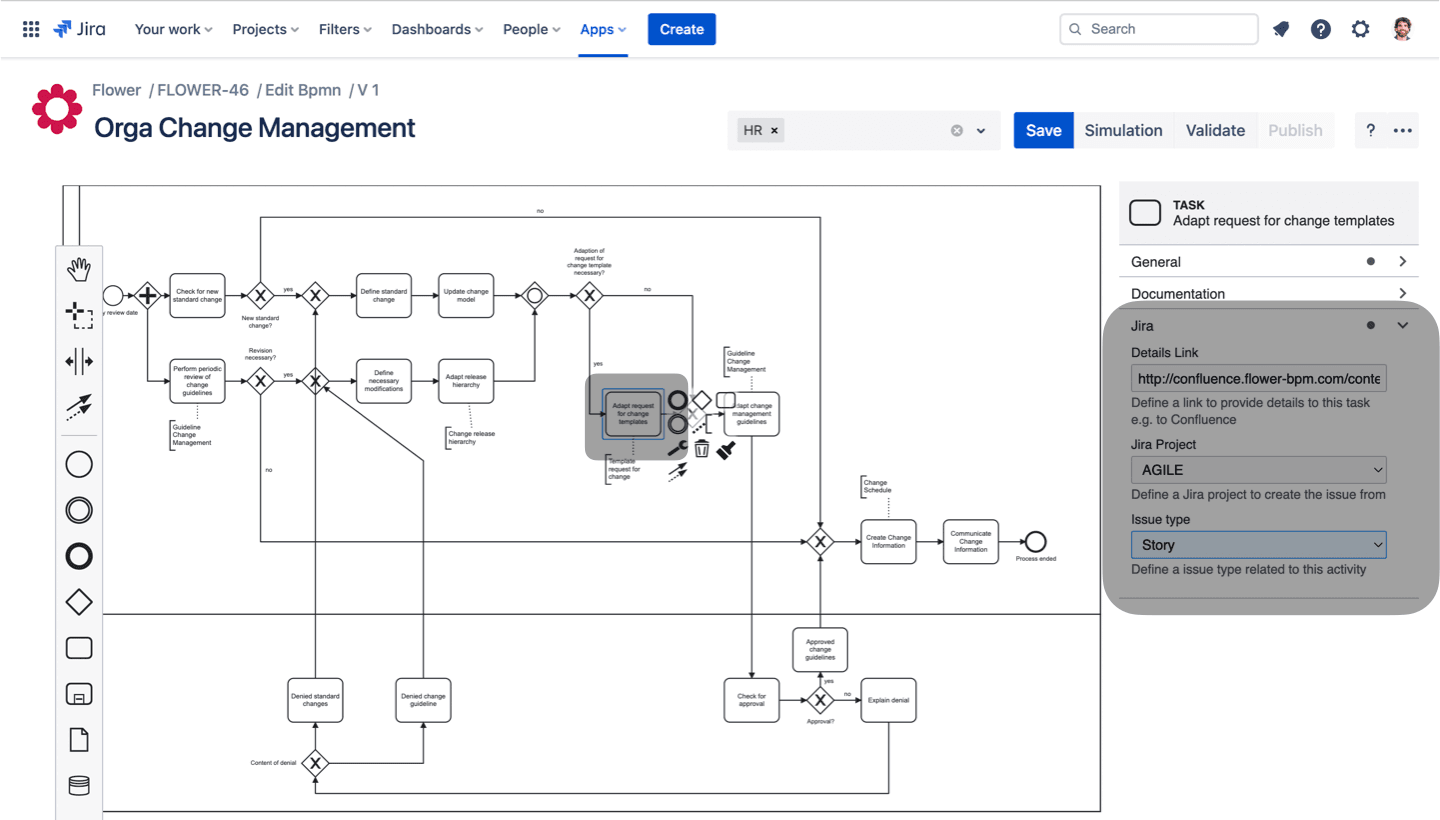
For workflow automation, each activity becomes a Jira work item. You define which Jira space and work type to use in the process model. If nothing is specified, the default values apply.
Use a sub-process for complex work that can be broken down into smaller pieces of work. A sub-process usually contains another business process model that describes its details.
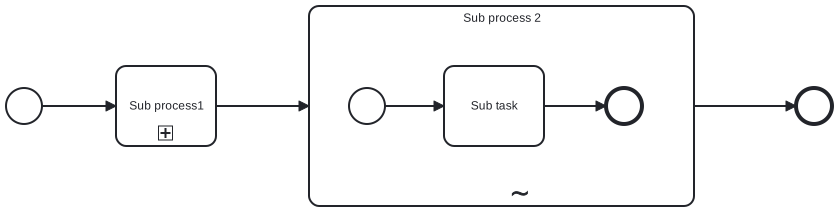
The choice between a task and a sub-process is not only about complexity but also about the level of detail you need. As a customer, you probably do not want to know how your payment is processed. As the shop, you do.
Ad-Hoc Sub-Processes
One marker is available only for sub-processes: ad hoc, marked by a tilde (~). Use an ad-hoc sub-process for a segment in which the contained activities can be executed in any order, several times, or skipped.
BPMN 2.0 specifies what must, may, and must not occur within an ad-hoc sub-process:
- Must: activities
- May: data objects, sequence flows, associations, groups, message flows, gateways, and intermediate events
- Forbidden: start and end events, and symbols for conversations and choreographies
Each party that executes the sub-process decides what to do and when. This free-form nature seems to defeat the purpose of process modeling, because what happens when is what you want to control. On the other hand, it is the reality of many processes that rely on implicit knowledge or creativity, or in which people work differently. An ad-hoc sub-process can also mark an undesirable actual state on the way to a more standardized process.
Events
Events are things that happen and can affect a business process. They can be external or internal. As long as they can influence the process, model them. Events are circles, in some cases with an icon for the type of trigger. There are three types: start events, intermediate events, and end events, and a trigger can be defined for each of them.
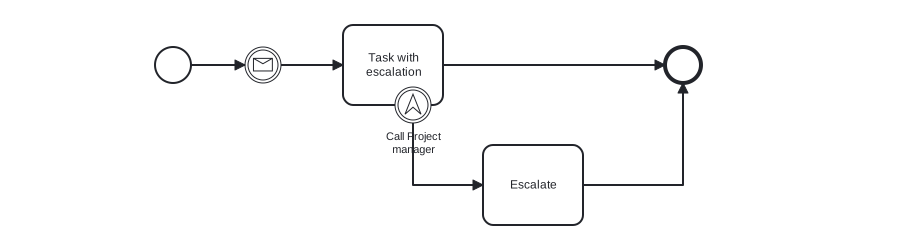
Every process should have a start event that shows where it begins. The end event shows where it completes. Intermediate events drive the flow based on the event they specify. An intermediate event can be attached to the boundary of an activity to model an event that may happen during the execution of the activity. It can also sit in the flow to model an event that may happen after the previous flow element.
In the following example, tasks may be escalated to the project manager. The process ends when the task is resolved or escalated.
Events are also classified as catching or throwing:
Catching events have a defined trigger and take place once it fires. They influence the course of the process. They may:
- Start the process
- Continue the process or a process path
- Cancel the task or sub-process being processed
- Start another path while a task or sub-process executes
Throwing events trigger themselves instead of reacting to a trigger, because the process triggers them. They can be triggered during the process or at its end. In Flower, a throwing event can call a Jira Automation rule or an external service, see Sync Magic.
Attached intermediate events sit on the boundary of an activity and interrupt it, for tasks and sub-processes alike (see the task escalation example). In Flower, a timer boundary event sets the due date of a work item and starts an escalation path, see Set Jira Due Dates with Timer Events.
| Start | Intermediate | End | ||||||
|---|---|---|---|---|---|---|---|---|
| Type | Normal | Event Sub process | Event Sub process non- interrupt | Catch | Boundary | Boundary non- interrupt | Throw | |
| None | ||||||||
| Message | ||||||||
| Timer | ||||||||
| Conditional | ||||||||
| Link | ||||||||
| Signal | ||||||||
| Error | ||||||||
| Escalation | ||||||||
| Termination | ||||||||
| Compensation | ||||||||
| Cancel | ||||||||
| Multiple | ||||||||
| Multiple Parallel | ||||||||
Gateways
Gateways control how the process flows. They are shown as diamonds. In a process, work and output can differ under different internal or external conditions. For example, only a VIP buyer receives a discount. A gateway is where conditions are evaluated and the decision is made. The typical types are:
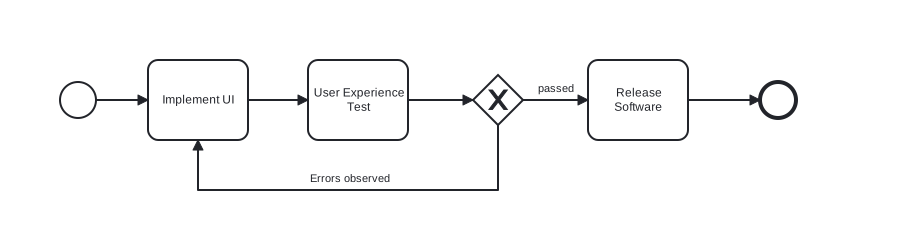
Exclusive gateway (XOR). It controls the flow based on process data. Each outgoing flow has a condition, and the flow whose condition is true is taken. Only one flow is taken.
Inclusive gateway (OR). It can create parallel paths. The conditions of all outgoing flows are evaluated, and all flows with a positive result are taken. Several flows can run if several conditions are true.
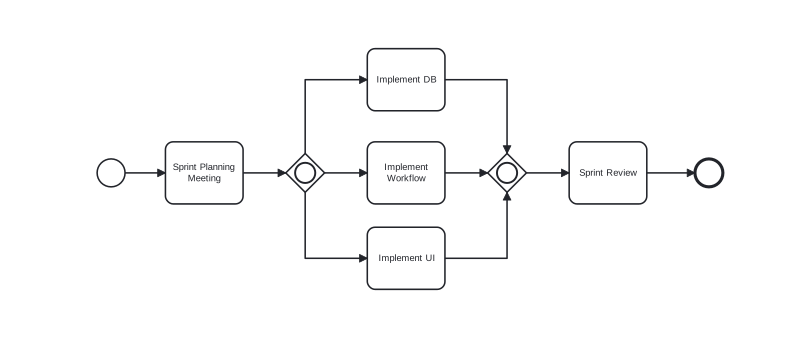
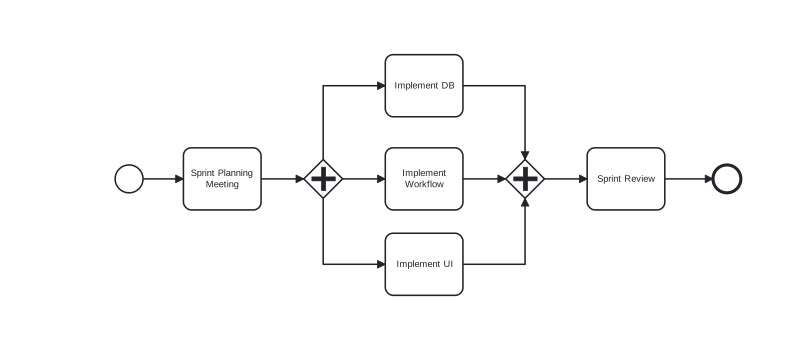
Parallel gateway (AND). It models parallel flows without checking conditions. All outgoing flows are executed at the same time.
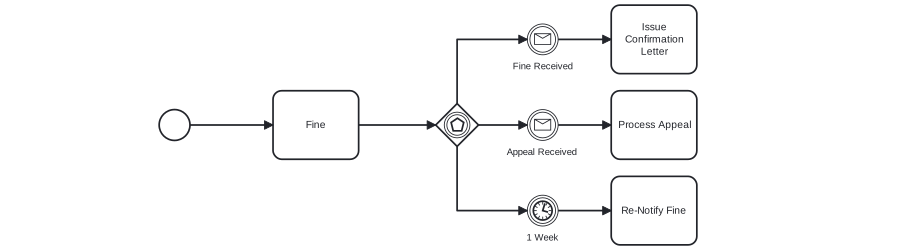
Event-based gateway. It models alternative paths that depend on events. For example, to wait for a reply, either yes or no determines the path. The gateway is followed by two connected intermediate events with message triggers, one for yes and one for no. When one of the events occurs, the flow after it is taken, and the other events and their flows are no longer valid.
To automate a gateway, the engine needs a decision. In Flower, the outgoing paths of an exclusive gateway carry conditions that the engine evaluates with the data of your Jira work items. Learn more in BPMN Gateways & Decision Handling.
Sequence Flows
A sequence flow connects flow elements and shows their order. It is a solid line with an arrowhead.
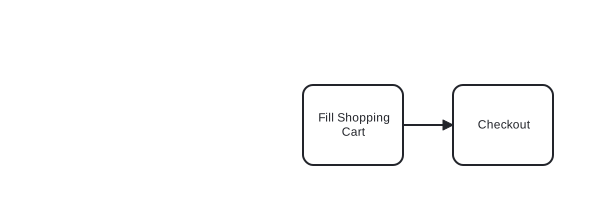
You can use sequence flows only to connect flow elements within the same pool, either within a lane or across lanes. To connect elements across pools, use message flows.
Message Flows
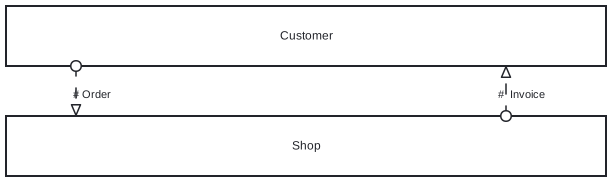
Message flows show the communication between pools. A message flow is a dotted line with an arrowhead. Examples of messages are fax, telephone, email, letter, notice, and command.
Data
Processes generate and consume data. The successful execution of a Place Order task, for example, produces data such as purchase orders, invoices, and receipts. BPMN models data with data objects, data inputs, data outputs, and data stores, and it defines how the states of data are managed.

Groups
A group is a box with a dotted border that lets modelers group shapes by category.
Text Annotations
A text annotation adds detail to flow objects. It does not affect the flow. You can also use it to add instructions for the Jira user. In Flower, text annotations become the description field of the related Jira work item.

What Workflow Patterns Can Be Used in Jira and BPMN?
Workflow patterns are common, reusable solutions to recurring problems in workflow design. These widely used control-flow patterns have a direct BPMN construct:
| Pattern | Meaning | BPMN construct |
|---|---|---|
| Sequence | Activities run one after another. | Sequence flow |
| Parallel split | One path splits into several paths that run at the same time. | Parallel gateway (diverging) |
| Synchronization | Parallel paths wait for each other before the process continues. | Parallel gateway (converging) |
| Exclusive choice | Exactly one of several paths is chosen, based on a condition. | Exclusive gateway (diverging) |
| Simple merge | Alternative paths come together without waiting. | Exclusive gateway (converging) |
| Multi-choice | One or more paths are chosen, based on conditions. | Inclusive gateway (diverging) |
| Synchronizing merge | Waits for all paths that were started. | Inclusive gateway (converging) |
| Loop | An activity or a sequence repeats until a condition is met. | Sequence flow back to an earlier element |
| Multiple instances | An activity runs once for each item of a collection. | Multi-instance marker |
| Deferred choice | The environment decides, and the first event that occurs wins. | Event-based gateway |
| Cancellation | An activity or the whole process is canceled. | Boundary event, terminate end event |
| Escalation | A task is escalated if it is not completed in time. | Timer boundary event |
Flower supports a subset of the BPMN elements for automation in Jira. See the list of supported elements.
How Flower Maps BPMN to Jira
| BPMN element | In Jira with Flower |
|---|---|
| User task, manual task, plain task | A Jira work item |
| Lane | The assignee of the work items |
| Text annotation | The description of the work item |
| Exclusive gateway | A decision based on conditions that use Jira data |
| Parallel gateway | Several work items created at the same time |
| Timer boundary event | A due date and an escalation path |
| Throw event | A call to a Jira Automation rule or a webhook |
| Terminate end event | All open work items are closed |
| Process model | A versioned Jira work item |
| Process instance | A Jira work item that bundles all activities of a run |
Frequently Asked Questions
What is BPMN?
BPMN stands for Business Process Model and Notation. It is an open standard from the Object Management Group for drawing business processes in a flowchart-like diagram.
Can I use BPMN in Jira?
Yes, with an app such as Flower. You draw the process in the BPMN modeler, and Flower runs it in Jira with one work item per activity.
What is the difference between a pool and a lane?
A pool represents a participant in the process, such as a company or department. A lane is a sub-partition of a pool, for example a role or team. In Flower, a lane stands for a Jira assignee.
Does Flower support all BPMN elements?
Flower supports a subset of the BPMN elements for automation. You can still draw all elements of the standard. See the list of supported elements in the documentation.
About Flower
Flower – Business Process & Workflow Automation (BPMN) for Jira is an app on the Atlassian Marketplace for Jira Cloud and Jira Data Center. It lets you model business processes in BPMN 2.0 and run them in Jira: for every activity of a process, Flower creates a Jira work item, assigns it through swimlanes, shows its status in the process diagram, and continues the process when the work item is resolved. Flower stores all process data in Jira, so your permissions, boards, and reports keep working. Flower is Cloud Fortified and has been on the Atlassian Marketplace for more than ten years.
Start a free 30-day trial on the Atlassian Marketplace or follow the Get Started guide.