Get Started with Automation
You have modeled and published a process. Now you run it: Flower turns every task of the model into a Jira work item at the moment the process reaches it, and moves on when the work item is done.
This walkthrough uses the onboarding model from Get Started with Modeling. Any published model works the same way.
Step 1: Press Play
- Open the Flower Repository in Jira.
- Click the play button of your published model.
- The dialog Start Process shows the model. Click Start.
Flower creates a process instance: a Jira work item that stands for this one run of the process. The Flower engine starts at the start event and runs until it reaches the first task.
Step 2: Find the Process Instance and Its First Task
After the start, Flower opens the process instance. The diagram shows where the process is, and the first task, for example “Prepare Contract”, is now a Jira work item linked to the process instance.
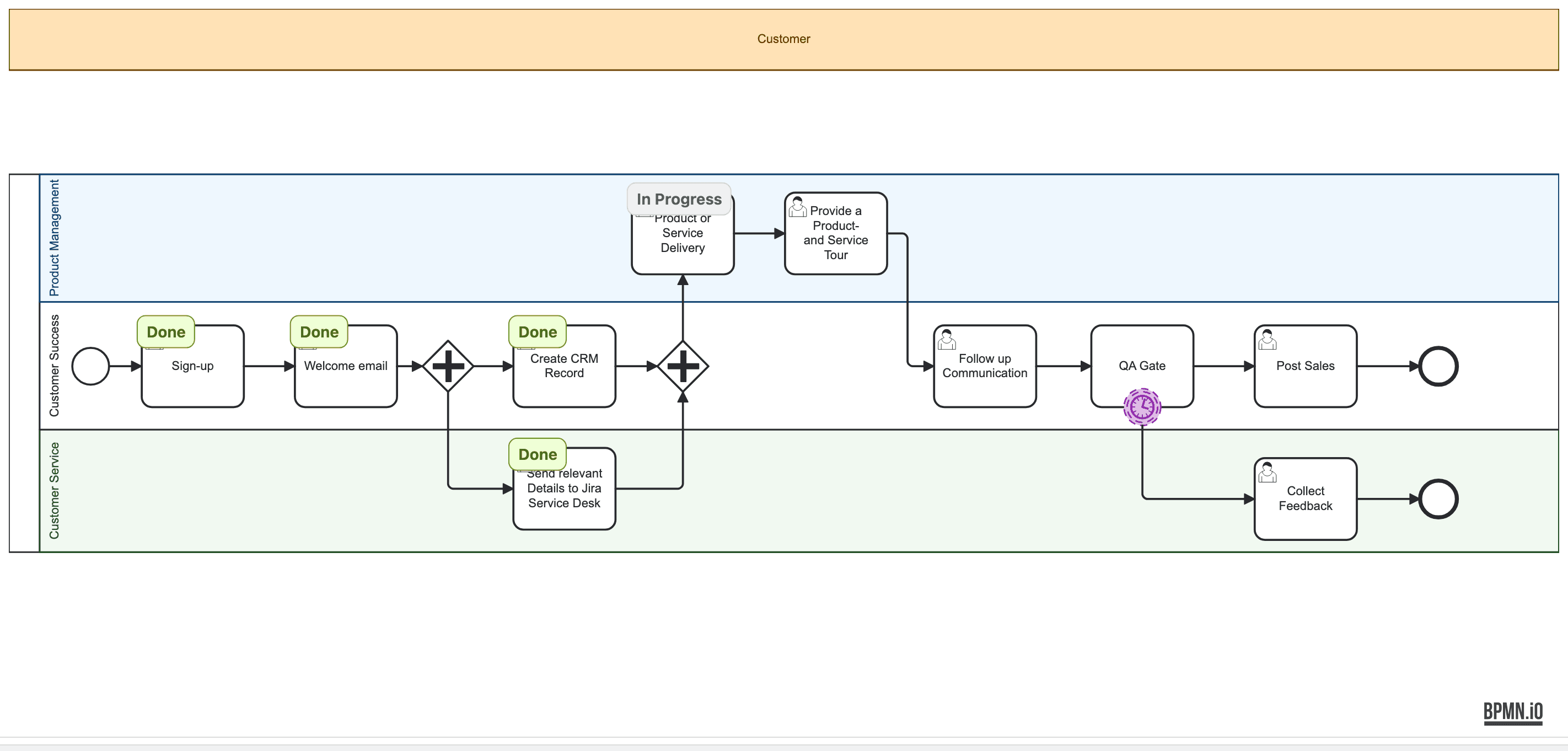
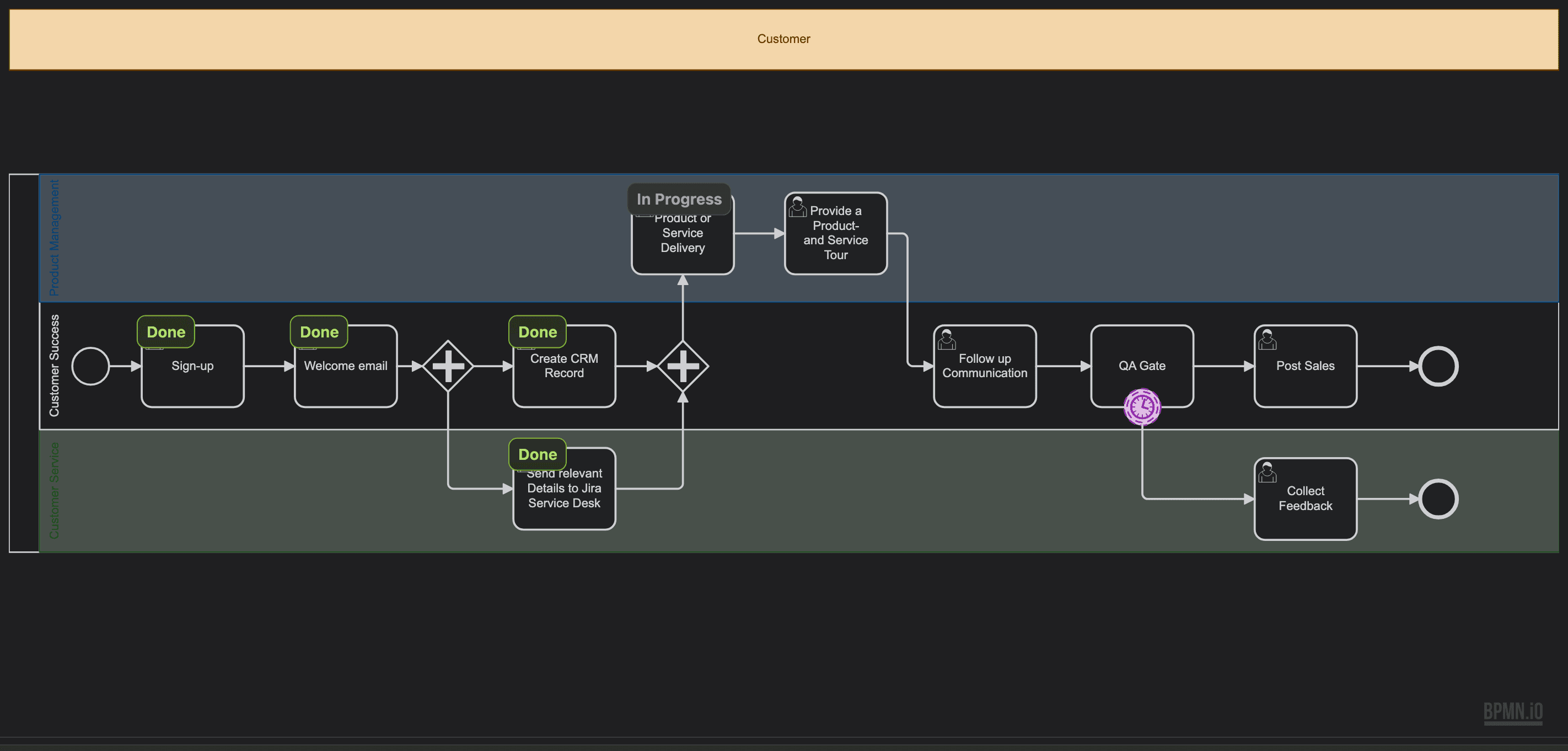
The work item gets its space and work type from the Flower Settings, and its assignee from the swimlane of the task, once the lane has one.
Step 3: Resolve the Task in Jira
Open the work item and move it to Done, the way you complete any work item in Jira. What counts is the resolution: the process goes on when the work item is resolved, that is when it gets a resolution, which the Done transition of most Jira workflows sets.
Step 4: The Next Task Appears
Flower notices the resolved work item and runs the process to the next task. In the onboarding model, the parallel gateway now creates two work items at once, “Set Up Laptop” and “Set Up Access Card”. The join waits until both are resolved, then “Welcome Meeting with Manager” appears.
When the process reaches the end event, Flower resolves the process instance. The process is done.
A process can also start without the play button, when a work item of a mapped work type is created, see Setup, Step 2.
Track Your Process Instances in Jira
Every process instance and every task is a Jira work item, so you track them with Jira filters and boards.
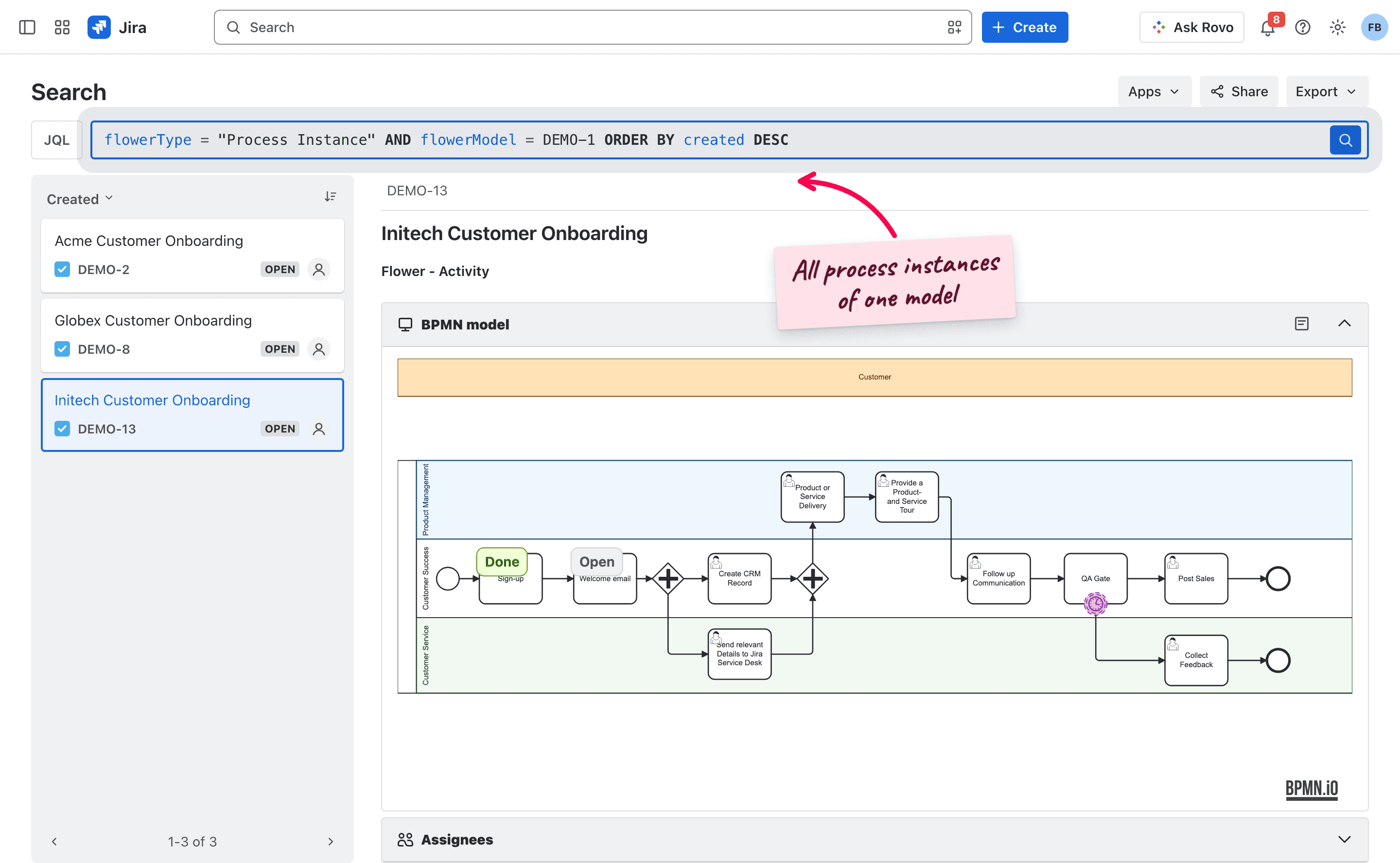
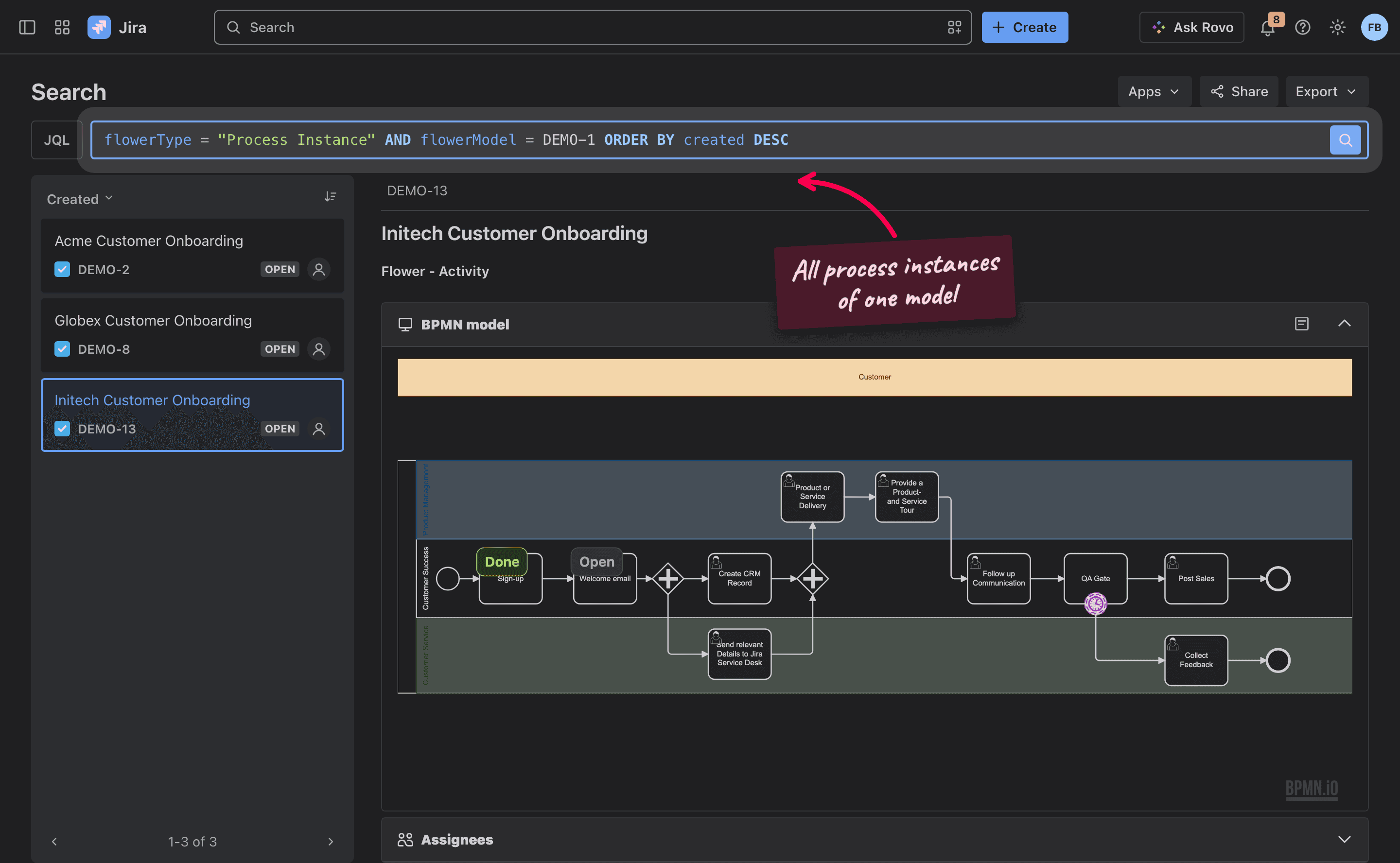
- Create a Jira filter that shows the process instances of your model, for example
flowerModel = YOUR-MODEL-KEY AND flowerType = "Process Instance". - Build a Jira board on this filter to follow the progress.
flowerLane = "YOUR-LANE-NAME"shows the work items of one swimlane.
More queries are on the JQL page.
Create Work Items in Advance
To plan later steps on a board, clear the checkbox Executable of the process in the properties panel. The model still runs as above, and in addition the process instance offers a play button for each task that has no work item yet. When the process reaches such a task, it uses the existing work item, see Loops.
What’s Next?
- Guides: assign work with swimlanes, decide with gateways, set due dates with timers, trigger Jira Automation, and more.
- Monitor & Optimize: see where your process instances are.
- How a Work Item Continues the Process: the exact rules, for when you need them.