Flower for Jira Data Center
Flower for Jira Data Center works like the Cloud version: the same modeler, the same engine, the same setup. This page covers what is specific to Data Center. All differences between the hosts are listed in Limits and Host Differences.
Requirements
- Jira Data Center 11.x
- Java 21, in line with the Jira 11 platform requirements. Java 17 is no longer supported.
- A legacy version for Jira 9.x and 10.x exists, but it is no longer supported and has limited functionality.
Installation
Install Flower for Jira Data Center directly from the Atlassian Marketplace. Then configure it like the Cloud version (Setup, Steps 1 and 2) and add the settings below.
Data Center Settings
Flower calls Jira’s REST API from within Jira. It needs to know how to reach Jira and which user it acts as. You set this on the Data Center tab of the Flower Settings:
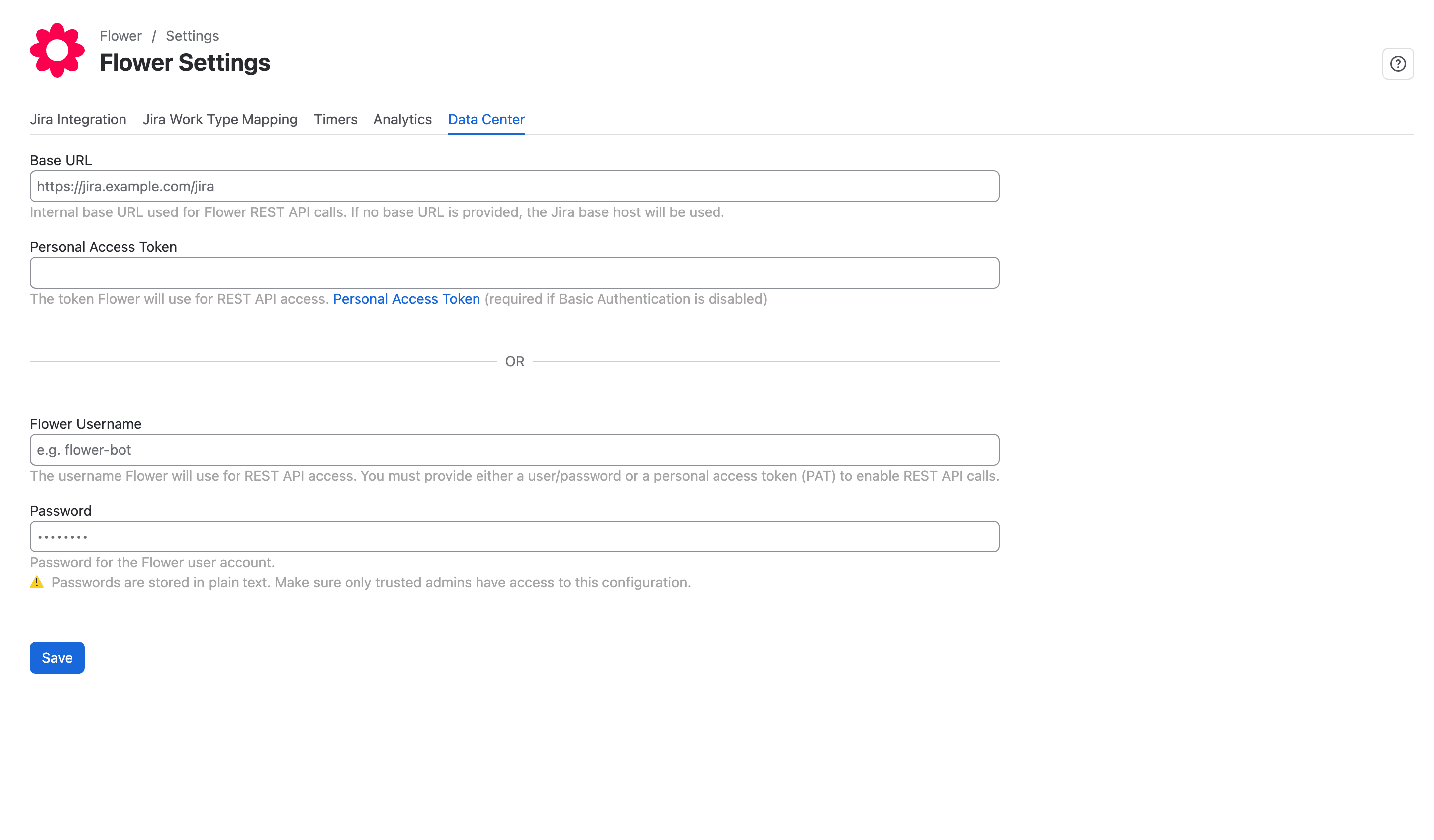
Flower needs either a Personal Access Token or a username and password. Without one of them, Flower cannot call the REST API and processes do not start.
- Personal Access Token: If your Jira has disabled Basic Authentication , you must use a Personal Access Token (PAT) . Flower sends it as a bearer token with every request. A PAT is also the better choice otherwise, because you can revoke it at any time.
- Flower Username and Password: The alternative to a PAT.
- Base URL (optional): The address Flower uses for its REST calls to Jira, including the context path, for example
https://jira.example.com/jira. If you leave it empty, Flower detects an address automatically and tries the Jira base URL first. Set it if Jira is not reachable under its base URL from the Jira server itself, for example behind a reverse proxy.
The password or token is stored in plain text in Jira’s plugin settings. Only Jira administrators can change the Flower settings and see these secrets: other users read the settings without the personal access token and the password. Use a dedicated technical user with only the permissions listed below, prefer a PAT, and revoke it when it is no longer needed.
Permissions
In both modes, Flower executes all REST operations as one Jira user. This means:
- Everything Flower does is done on behalf of this user: creating, editing, and transitioning work items, adding comments, and assigning and linking work items.
- When Flower creates a work item for a BPMN activity, this user is the reporter.
- The user needs the matching permissions in every relevant space: browsing the space, creating, editing, and transitioning work items, adding comments, and assigning and linking work items.
- The user must have access to every target space. Otherwise, operations may fail without a visible error.
Logging
Flower writes its own log file, flower.log, next to the Jira log atlassian-jira.log: in the log folder of the Jira home directory (in a cluster, the local home of the node). Nothing has to be configured. All Flower log lines start with [FLOWER], and the log contains expression evaluations, runtime errors, and process activity, which makes debugging easy. The file rotates automatically (10 MB, five files: flower.log, flower.log.1, and so on).
Flower looks for a folder it can write to in this order and uses the first one that works: the folder in the Java option -Dflower.log.dir=... (or the environment variable FLOWER_LOG_DIR), the log folder of the Jira home, JIRA_HOME/log, the logs folder of the Tomcat base (catalina.base), and the folder flower-logs in the temp folder of the system. If no folder can be written, Flower logs to the console (catalina.out) as before. A problem with the log never stops Flower.
The level is INFO. For more detail, add -Dflower.log.level=FINE to the Java options of Jira, or WARNING for less.
If processes do not start, first check the log for No HTTP authentication configured. It means that neither a PAT nor a username and password is set.
Who Can Change the Settings
Only Jira administrators (global permission Jira Administrators) can change the Flower settings and run the timer job by hand; for other users Jira answers 403 (Only Jira administrators can do this). Every signed-in user can read the settings, because the Flower pages need them, but users who are not administrators get them without the secrets (personal access token, password of the Flower user).
Timer Job
The timer job runs when Jira starts or the app is enabled, and then every 24 hours. A Jira administrator can run it at any time in the Flower Settings. Scripts start it with POST /rest/flower/latest/service/runTimerJob as a Jira administrator; a GET, which worked before 3.7.0, no longer does. The timer job does not take the lock of the process instances yet, see Known Issues. The day of a timer is the day in the time zone of the Jira JVM, see Timer Events.
REST API
Flower for Data Center has no Flower REST API. Use the Jira REST API: start a process by creating a work item of a mapped work type, and read Flower data with JQL, see REST API.