AI Agent Steps: People and AI Agents in One BPMN Process
In short: a BPMN process in Jira can hand a step to an AI agent today. The step is a Jira work item like every other user task, a rule of Jira Automation calls a Rovo agent for it, and the process goes on with the agent’s answer. A gateway decides on that answer, a person takes over when the agent cannot decide, and a timer sets the limit. The model stays the place where you see who does what, a person or an agent.
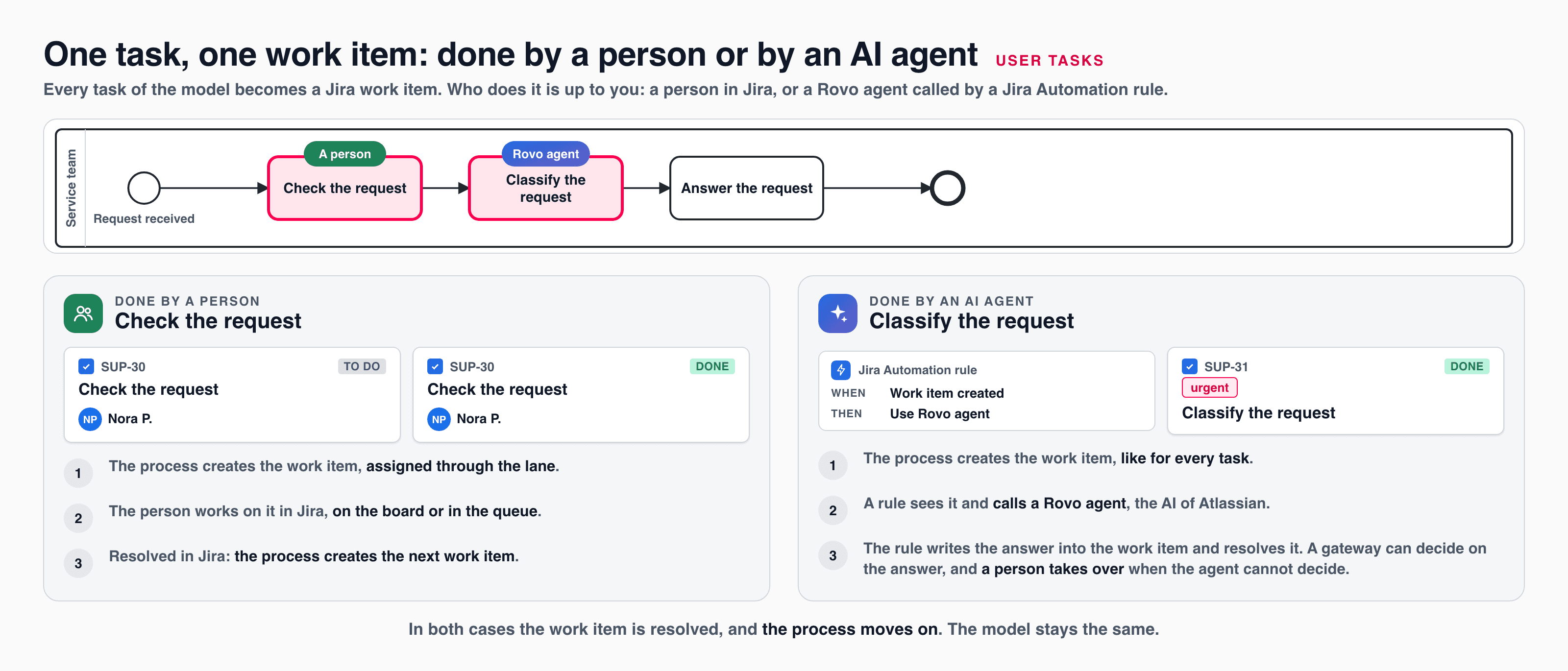
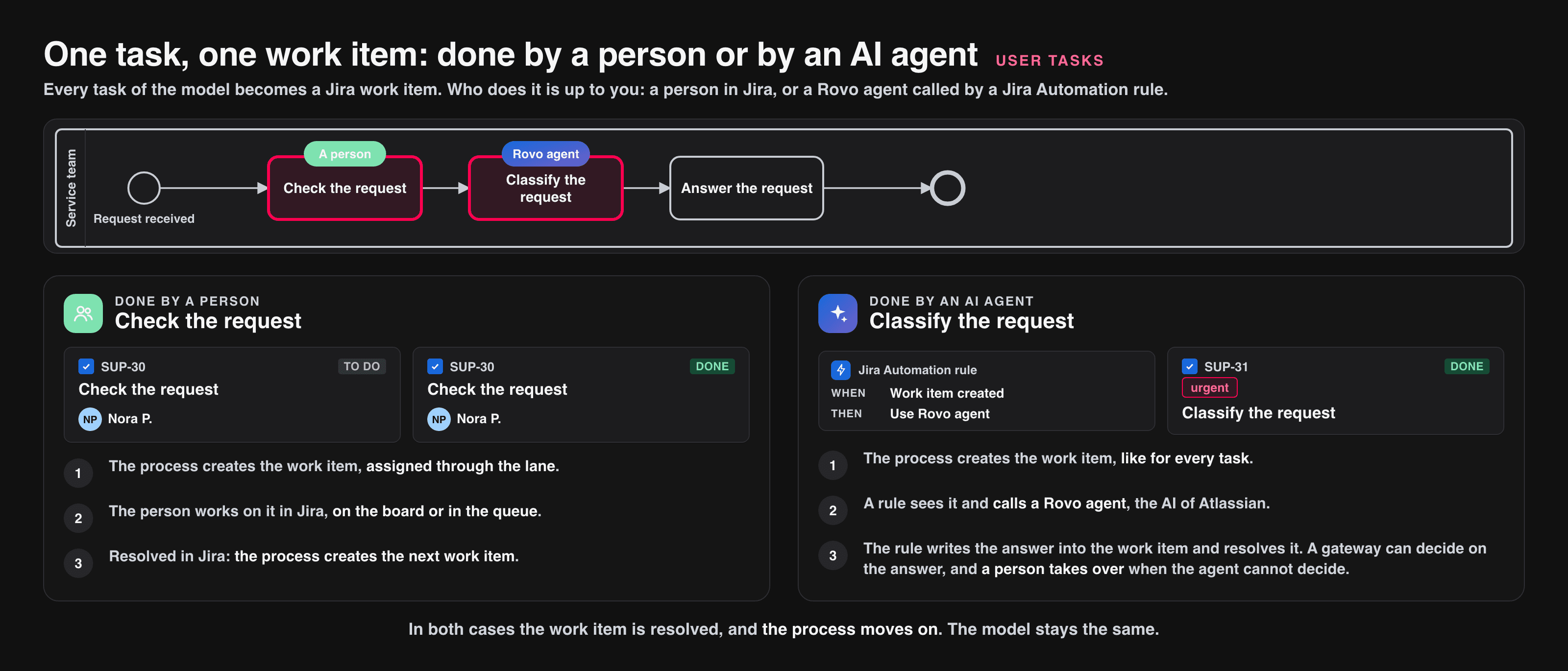
This page is for Jira Cloud with Rovo enabled. Agent calls use the Rovo credits of your Atlassian plan, and Jira Automation counts the rule runs. On Data Center, see the section below.
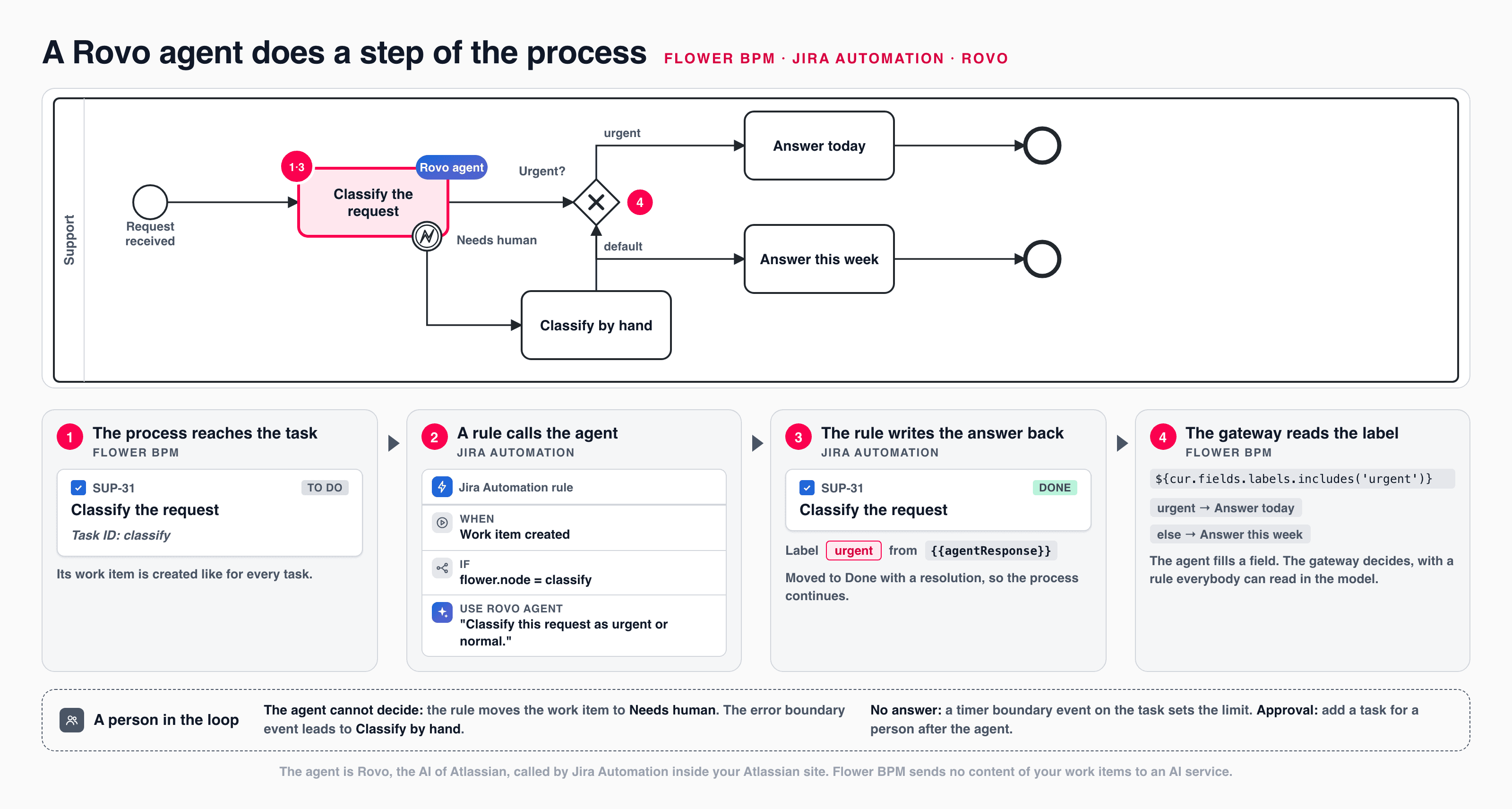
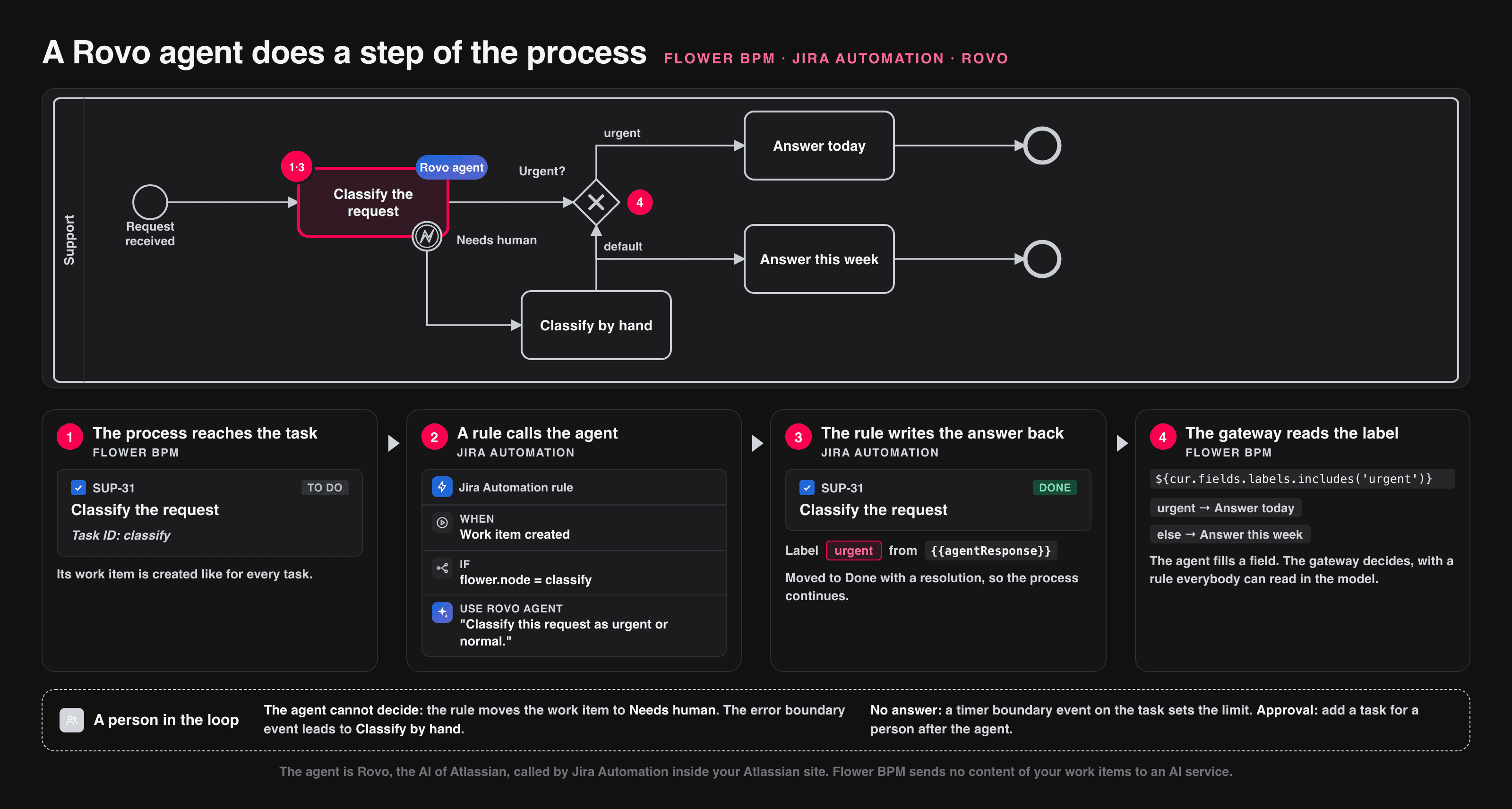
The example of this page: an incoming request is classified by an agent, urgent requests take the fast path, and a person takes over when the agent cannot decide.
How It Works
- The process reaches the task Classify the request and creates its work item, like for every task.
- A Jira Automation rule sees the new work item and calls the agent (action Use Rovo agent).
- The rule writes the agent’s answer into the work item, here as a label, and moves the work item to Done.
- The process goes on. The gateway after the task reads the label and chooses the path.
The agent step is a normal user task of the model. What makes it an agent step is the rule that does its work item.
Why a Process Model for AI Agents?
An agent can do a task. The process decides when the task is due, what happens with the result, and who steps in when something is unclear.
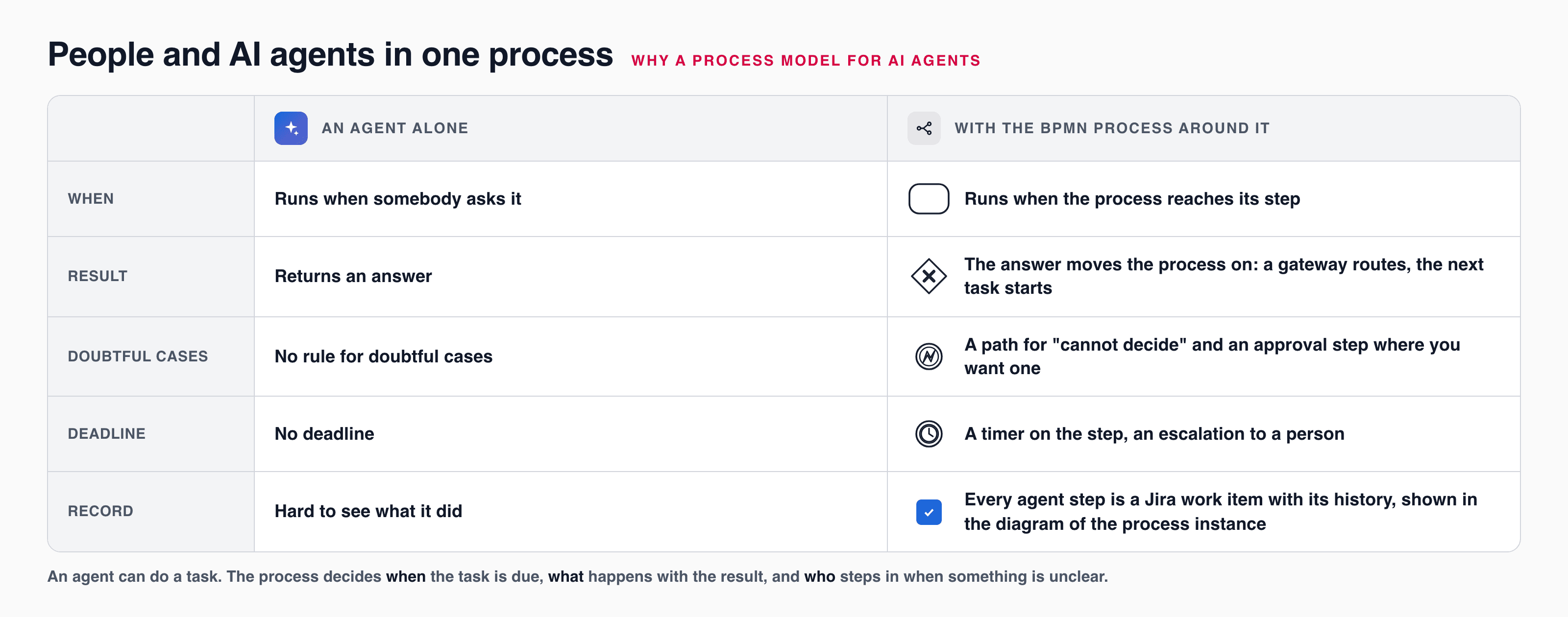
Step 1: Model the Agent Step
Add the task
Add a task, for example Classify the request, where the agent should work. Note its ID in the properties panel (for example classify): the rule finds the work item by it.
Add the gateway
After the task, add an exclusive gateway. Give the flow for urgent requests this condition and make the other flow the default flow:
${cur.fields.labels.includes('urgent')}cur is the work item whose change moved the process on, here the work item of the agent step. See Expressions.
Add the way out for “cannot decide”
Attach an error boundary event to the task and select a Jira status for it, for example Needs human. Lead its flow to a task for a person, for example Classify by hand. See Error boundary events.
Set a limit
Attach a timer boundary event to the task, for example P1D, with a path to a person. If the rule or the agent does not answer, the process does not wait forever. See Set Due Dates with Timers.
Publish the model.
Step 2: Create the Rule in Jira Automation
Create one rule in the space of the task’s work items:
| Part of the rule | Setting |
|---|---|
| Trigger | Work item created |
| Condition | The work item belongs to the agent step: compare the smart value {{issue.properties.flower.node}} with the ID of the task (classify) |
| Action | Use Rovo agent: choose the agent and write the instruction, for example: Classify this request as urgent or normal. Answer with one word. Add the fields the agent needs, for example the summary and description of the process instance |
| Action | Edit work item: set the label from the answer, for example urgent when {{agentResponse}} contains “urgent” |
| Action | Transition work item to Done. If {{agentResponse}} is not one of the expected words, transition to Needs human instead |
The transition must set a resolution, as for every task: the process goes on when a work item is resolved, see How a Work Item Continues the Process. The answer of the agent is available in the rule as {{agentResponse}}, see Atlassian: smart values of Rovo agents .
Try the rule in a test space first. The process side of this pattern (the work item, the gateway on the label, the error path) is covered by the automated tests of Flower BPM; the rule and the agent run in Jira, with the limits of your plan (automation runs, Rovo credits) and the permissions of the rule’s actor.
Step 3: Keep a Person in the Loop
Use the means of the model, there is nothing special to configure:
- Approval after the agent: add a task for a person after the agent step, for example Approve the answer. The agent drafts, the person decides.
- The agent cannot decide: the error boundary event from step 1. The rule moves the work item to Needs human, a person gets the task.
- No answer: the timer boundary event from step 1.
- Who did it: every agent step is a work item with its history, and the diagram of the process instance shows where the request stands, see Monitor.
Good to Know
- One rule for several steps: compare
{{issue.properties.flower.node}}with several task IDs in one rule, and branch on the ID for the instruction. - The agent writes a field, the gateway decides. Keep the routing rule in the model, where everybody can read it, and give the gateway a default flow.
- AI on the data of your processes: process instances and tasks are Jira work items and models are stored in Jira, so the AI features of Jira, such as search, summaries, and agents, work on them like on any other work item.
- An agent started by an event: a throw event can also trigger a rule that calls an agent, for work that the process does not wait for (a summary, a notification). See Trigger Jira Automation.
Your Data
- Flower BPM sends no content of your work items or models to an AI service. The agent is Rovo, the AI of Atlassian, called by Jira Automation inside your Atlassian site, with the permissions you give the rule and the agent.
- There is no AI model of its own and no second AI contract. Agent calls use the Rovo credits of your Atlassian plan.
- On Jira Cloud, the app stays Runs on Atlassian: the process engine and your process data stay on the Atlassian platform.
On Data Center
Rovo is not available on Data Center. Hand the step to your own service instead: put a throw event with a web service URL before the task, let your service do the work, and let it set the field and resolve the work item of the task through the Jira REST API. The gateway, the error path, and the timer work as described above.
Frequently Asked Questions
Can Jira & Flower BPM do AI?
Yes. A step of a BPMN process can be done by a Rovo agent today, with a gateway that decides on its answer and a person in the loop where you model one.
Does Flower BPM have its own AI model?
No. It uses Rovo, the AI of Atlassian, so no content leaves the Atlassian platform for an AI service.
Do I need Rovo?
For agent steps on Jira Cloud, yes: Rovo has to be enabled for your site, and agent calls use the Rovo credits of your plan. Modeling and running processes with people works without it.
Can an agent decide which path the process takes?
The agent fills a field, and the gateway decides with a condition on that field. The rule stays visible in the model, and a default flow or an approval task catches the doubtful cases.
Does this work on Jira Data Center?
Not with Rovo. On Data Center a step can be handed to your own service, as described above.