Flower BPM and Jira Automation
Flower BPM runs the BPMN process, Jira Automation runs rules. The two talk in both directions:
- From Flower to Jira Automation: the process reaches a throw event or an automated task and starts a rule. The rule sends an e-mail, calls a web service, changes other work items, or asks an AI agent.
- From Jira Automation to Flower: a rule sends a message to one process instance, a signal to every waiting process instance, or reports an automated task done. The process goes on.
Together they build a round trip: the process hands work to a rule and waits; the rule does it and answers.
How each direction works depends on where Flower runs:
| Jira Cloud (Forge app) | Jira Data Center | |
|---|---|---|
| Flower → rule | The process instance gets the comment Flower Automation Event: <name> and the property flowerAutomation; the rule uses the trigger Work item commented | The throw event calls the incoming webhook of the rule (HTTP POST); without a webhook URL it writes the same comment as on Forge |
| Rule → Flower | The actions of Flower in the rule builder: Flower: Send message to process, Flower: Send signal, Flower: Complete automated task | Send web request to the REST API of Flower: processMessage, processSignal, automatedTask |
| Rule → Flower by comment | A comment with @FlowerBPM, when the rule acts as a person (not as the app account Automation for Jira) | A comment with @FlowerBPM, when the actor of the rule can edit the work item |
All host differences: Limits and Host Differences.
From Flower to Jira Automation
What Starts a Rule
| Element of the model | Starts a rule when |
|---|---|
| Intermediate throw event (none, message, signal, escalation, compensation, multiple) | the token reaches it; then the token goes on at once |
| Message end event, signal end event | it has a webhook URL or the request type Jira Automation |
| Service, script, send or business rule task with the tick Wait for Jira Automation | the process reaches it; the process waits until a rule reports the task done (see the round trip) |
A link throw event jumps to its link catch event and starts no rule. A message throw event with a message flow to another pool of the model delivers its message to that pool instead (Message Flows). A signal throw or end event also sends its signal to every process instance that waits for it (Signal Events).
Jira Cloud (Forge): the Comment Trigger
The Forge app runs on Atlassian’s platform and sends no data to other servers, so it does not call a webhook. When the token reaches the element, Flower
- sets the property
flowerAutomationof the process instance, and - adds the comment
Flower Automation Event: <name of the element>to the process instance.
The property holds the event as JSON; it changes with every event:
{
  "node": "Event_0x9f3k2",
  "name": "Notify the customer",
  "instance": "FLOWER-375",
  "type": "message",
  "at": "2026-11-03T09:30:12.481Z",
  "id": "2026-11-03T09:30:12.481Z-Event_0x9f3k2"
}
type is the kind of the throw event (none, message, signal, escalation, compensation, multiple), or the task type of an automated task (serviceTask, scriptTask, sendTask, businessRuleTask).
The rule:
Trigger: Work item commented
In Project settings → Automation (or the global automation of the site), create a rule with the trigger Work item commented.
Condition: only the events of Flower
Add the condition Advanced compare: {{comment.body}} contains Flower Automation Event. For one element only: Flower Automation Event: Notify the customer.
Actions
Add what the rule should do. {{issue}} is the process instance; its property is {{issue.properties.flowerAutomation.node}}, {{issue.properties.flowerAutomation.name}} and so on.
Jira Data Center: the Incoming Webhook
On Data Center, the throw event or the automated task calls the webhook URL set in its properties panel with an HTTP POST:
{"issues": ["FLOWER-375"], "instance": "FLOWER-375", "node": "Event_0x8kq2", "name": "Notify customer", "type": "message"}Trigger: Incoming webhook
Create a rule with the trigger Incoming webhook and choose that the rule runs for the work items in the request. Copy the webhook URL and the secret.
The URL in the model
Enter the URL in the properties panel of the throw event or the task, with the secret at its end: <webhook URL>/<secret>. Flower sends no custom headers.
Actions
{{issue}} is the process instance, {{webhookData.node}}, {{webhookData.name}} and {{webhookData.type}} name the element.
Without a webhook URL, or with the request type Jira Automation, the element does what the Forge app does: the property flowerAutomation and the comment Flower Automation Event: <name>, so the same rule with the trigger Work item commented works on both hosts. The rules for webhook URLs (https, public targets, no redirects, about 10 seconds), the answer comment and the curl example: Triggering Jira Automation.
From Jira Automation to Flower
A rule can give Flower three commands. Each one needs the key of the process instance or of one of its work items (a signal needs none):
| Command | What happens in the process |
|---|---|
| Send a message | The receive task, message catch event, message boundary event or message start event of this process instance that waits for a message of this name gets it (Message Events) |
| Send a signal | Every process instance that waits for a signal of this name gets it (Signal Events) |
| Complete an automated task | The waiting automated task is done, with an optional result or error code (Automated Tasks) |
All ways in end in the same inbox of Flower: one delivery per process instance, one after the other, also when several rules send at the same time.
Jira Cloud (Forge): the Actions of Flower
The Forge app adds three actions to the rule builder of Jira Automation. They are part of the app: there is nothing to install or configure besides the rule.
| Action | Inputs |
|---|---|
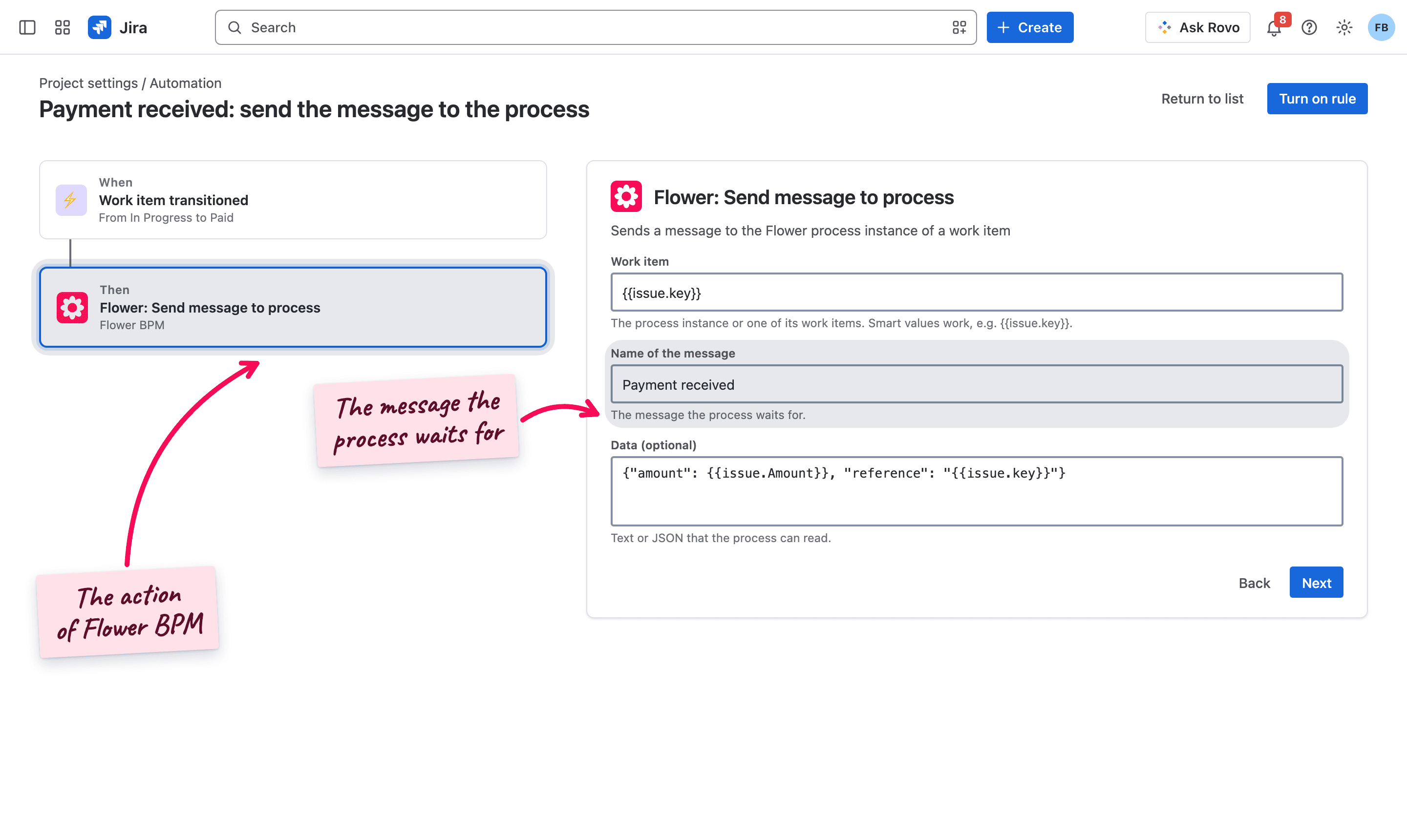
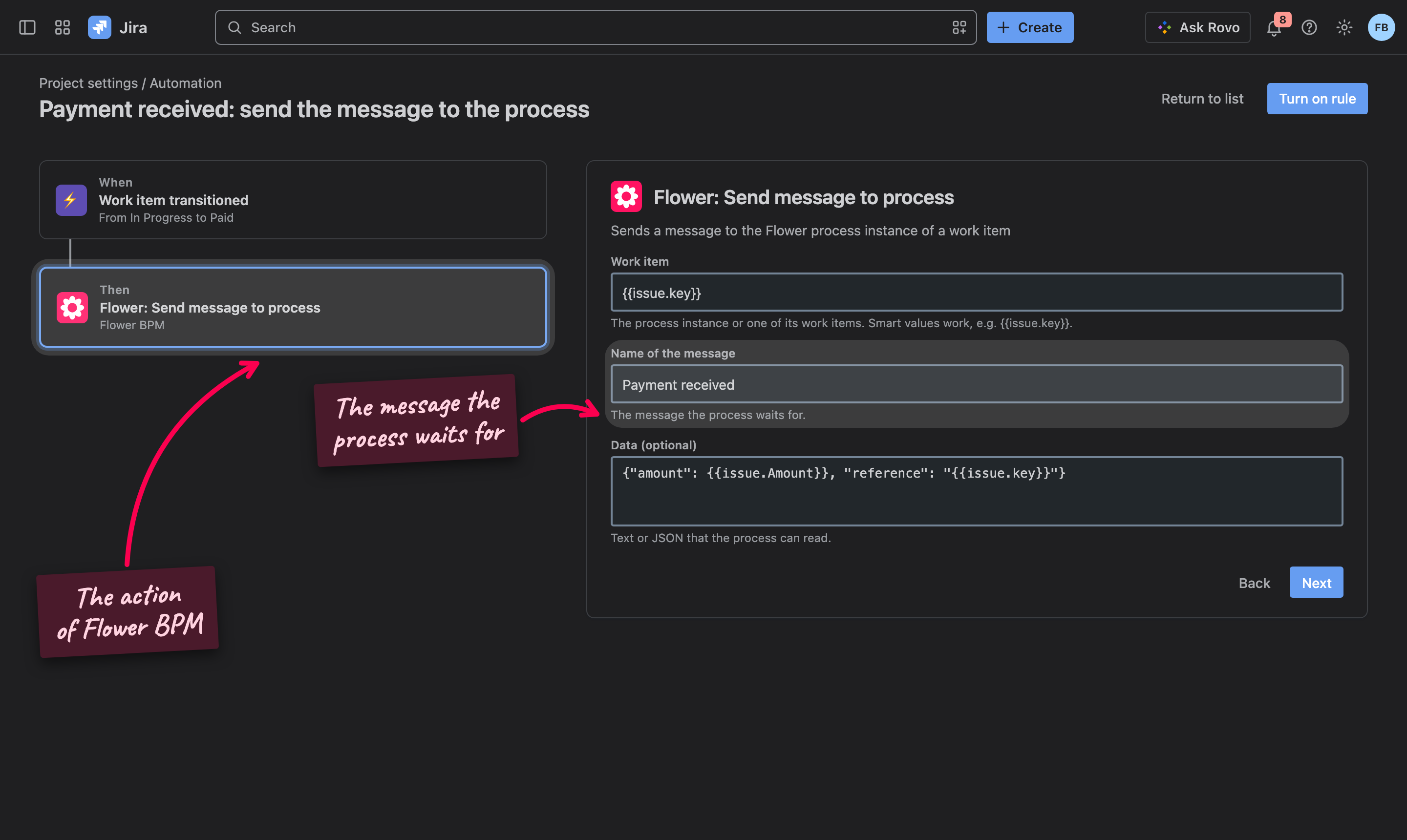
| Flower: Send message to process | Work item (the process instance or one of its work items, default {{issue.key}}), Name of the message, Data (optional) |
| Flower: Send signal | Name of the signal, Data (optional) |
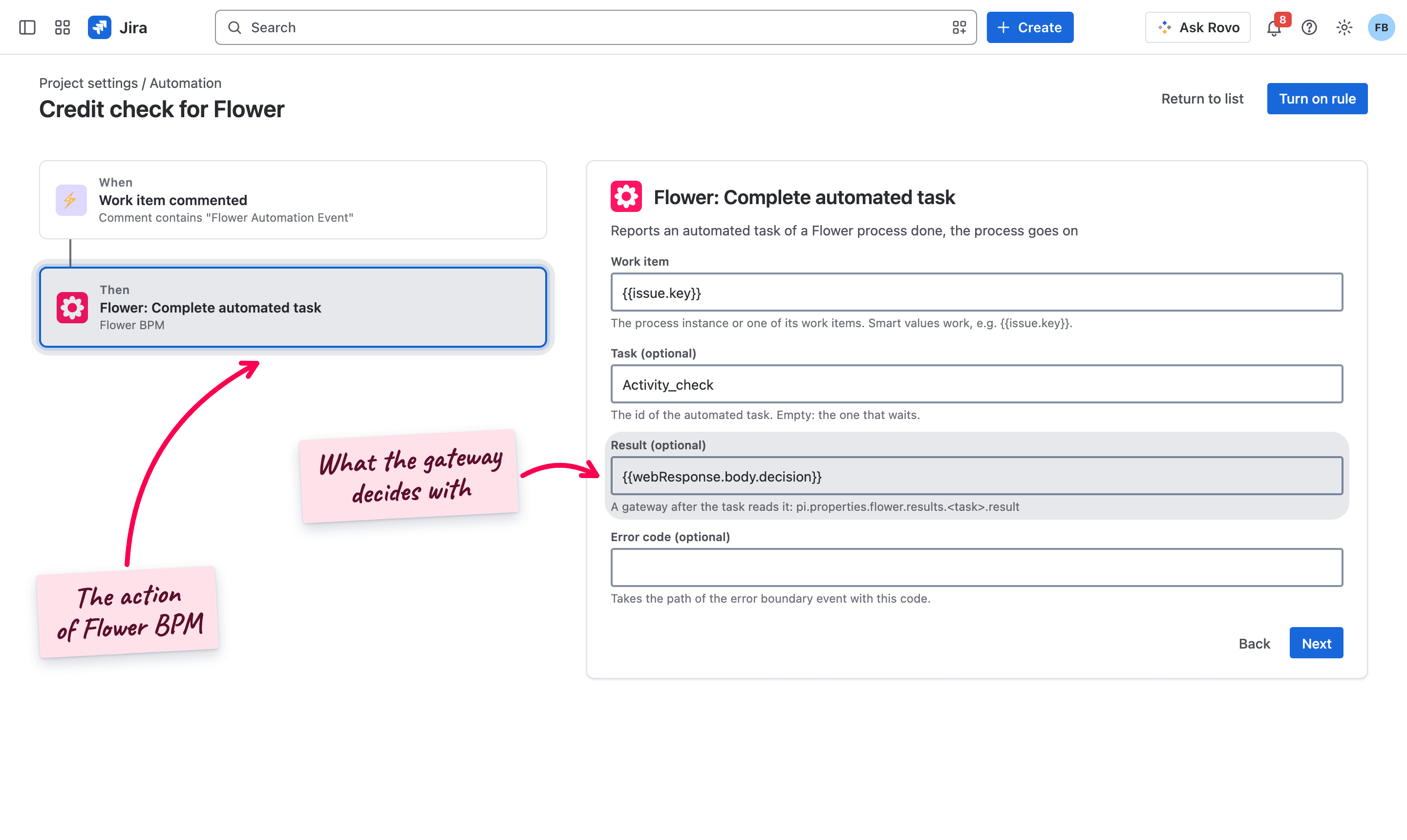
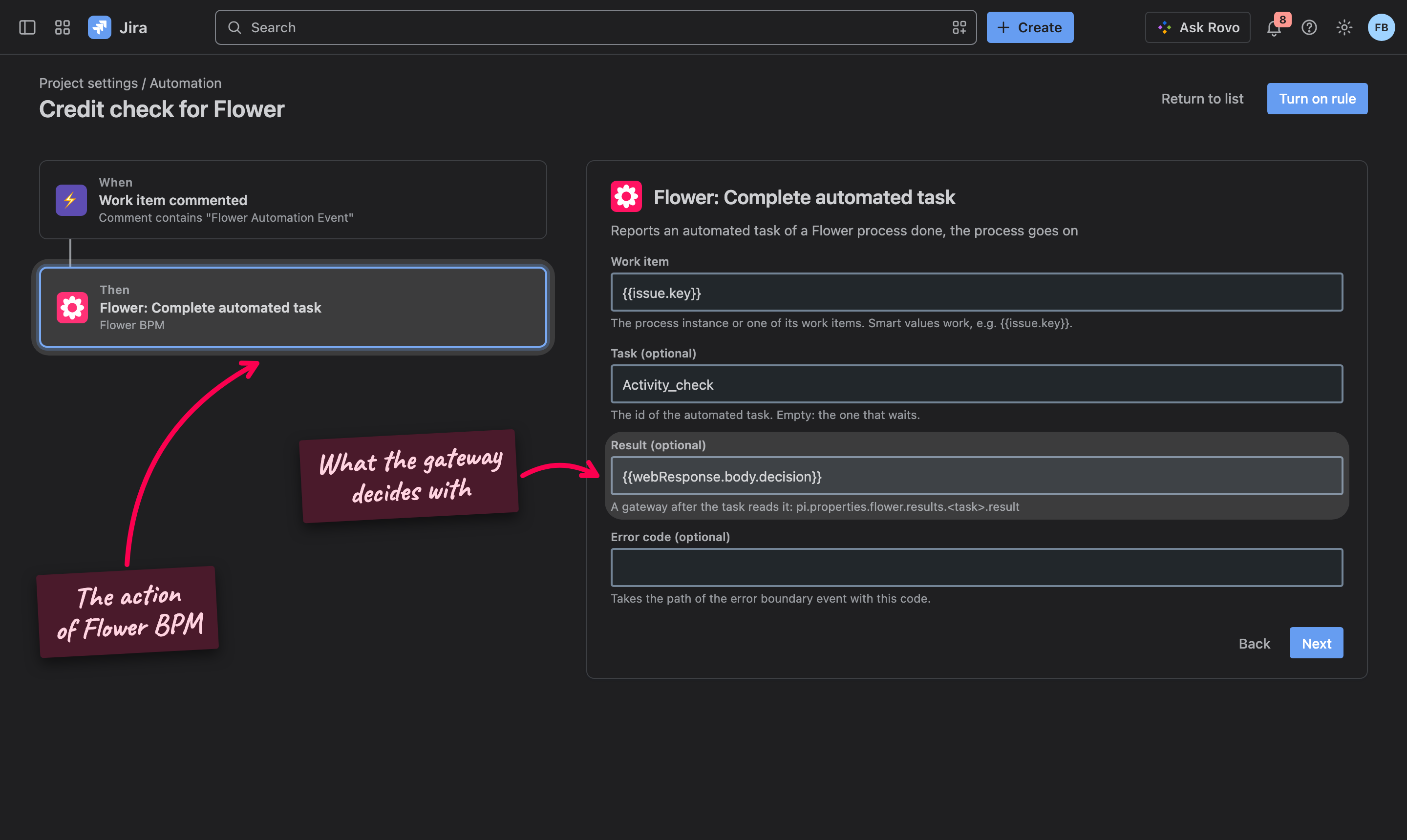
| Flower: Complete automated task | Work item, Task (optional: the id of the automated task; empty when only one waits), Result (optional), Error code (optional) |
Create the rule
In Project settings → Automation (or the global automation of the site), click Create rule and choose a trigger, for example Work item transitioned to Paid, or Scheduled for a signal every Monday.
Add the action of Flower
Click Add component → Then: add an action and search for Flower. Choose Flower: Send message to process.
Fill in the inputs
Work item: keep {{issue.key}} when the rule runs on the process instance or one of its work items. Name of the message: exactly the name the element in the model waits for, for example Payment received. Data: text or JSON, for example {"amount": {{issue.Amount}}}.
Connect the app once
The first time someone adds an action of Flower to a rule, Jira asks the rule author to connect the app for the site. This happens once per site.
Turn on the rule
Name the rule, click Turn on rule, and test it on a process instance that waits for the message.
What the actions check and do:
- Who may: the actor of the rule must be able to edit the work item and its process instance; otherwise the action sends nothing and the audit log of the rule shows why. A signal reaches only the process instances that the actor can edit.
- Data: JSON text (an object or a list, also a smart value such as
{{webResponse.body}}) becomes an object, so a gateway reads${pi.properties.flower.messageData['Payment received'].amount > 1000}; any other text stays text. Flower keeps up to 2000 characters. - Errors: a message that nothing waits for is dropped with a warning comment on the process instance; a wrong task id or a task that does not wait is named in a comment.
Jira Data Center: the REST API of Flower
On Data Center, a rule calls the REST API of Flower with the action Send web request (method POST, body Custom data, header Content-Type: application/json). The request must be authenticated as a Jira user who can edit the work item and its process instance, for example with a personal access token in the header Authorization: Bearer <token>.
| Command | Request | Body |
|---|---|---|
| Send a message | POST /rest/flower/latest/service/processMessage | {"issueKey": "{{issue.key}}", "name": "Payment received", "data": {"amount": 1200}} |
| Send a signal | POST /rest/flower/latest/service/processSignal | {"name": "Price list changed", "data": {"list": "2027"}} |
| Complete an automated task | POST /rest/flower/latest/service/automatedTask | {"issueKey": "{{issue.key}}", "taskId": "Activity_check", "result": "approved", "errorCode": ""} |
data, taskId, result and errorCode are optional. The answers:
| Status | Meaning |
|---|---|
202 {"queued": true} | Accepted; Flower delivers it in the order of the inbox |
400 | The body is no JSON, or name / issueKey is missing |
403 | The caller is not logged in, or cannot edit the work item or its process instance |
Both Hosts: a Comment with @FlowerBPM
A rule can also write a comment (action Add comment) on the process instance or one of its work items:
@FlowerBPM Payment received
amount: 1200
The line with @FlowerBPM names the message, @FlowerBPM signal <name> sends a signal, the key: value lines below become the data. The comment counts when the actor of the rule can edit the work item. On Jira Cloud, the default actor Automation for Jira is an app account, and Flower ignores comments of apps: there the rule acts as a person, or better uses the actions of Flower above. All rules of the comment: Message Events.
Round Trip: an Automated Task
A service task Check the credit limit with the tick Wait for Jira Automation:
The process starts the rule
The token reaches the task. No work item is created. On Forge, the process instance gets the comment Flower Automation Event: Check the credit limit (property flowerAutomation.type = serviceTask); on Data Center, Flower calls the webhook of the task.
The rule does the work
A rule with the trigger Work item commented (Forge) or Incoming webhook (Data Center) calls the credit check with Send web request.
The rule reports the task done
The rule ends with Flower: Complete automated task (Forge) or a Send web request to automatedTask (Data Center), with the result {{webResponse.body.decision}}.
The process goes on
A gateway after the task decides with ${pi.properties.flower.results.Activity_check.result == 'approved'}. An error code takes the path of the error boundary event with this code; a timer boundary event on the task is its timeout.
What Flower Writes
Flower comments on the process instance, so the history shows every step of the exchange:
| When | Comment |
|---|---|
| A throw event or automated task starts a rule (Forge, or Data Center without a webhook URL) | Flower Automation Event: <name> |
| A webhook was called (Data Center) | The status code of the answer, or an error comment |
| An element starts to wait for a message | Waiting for the message … at … (a note) |
| A message or signal is delivered | Message … received / Signal … received, with the elements that got it |
| A message arrives that nothing waits for | A warning: the message is dropped |
| An automated task is reported done | The result of the task |
Related
- Triggering Jira Automation with BPMN Events: the outbound direction step by step, webhook rules, external services
- Message Events and Signal Events: the elements that wait, the comment syntax, the data in conditions
- Automated Tasks: tasks that a rule does
- AI Agent Steps: a rule that lets a Rovo agent do a task
- Flower REST API: start processes and read models from your own tools